#Day 07 - Understanding package manager and systemctl
Passionate AWS Developer | DevOps Engineer with a strong background in cloud architecture and solutions engineering. Leveraging the power of Amazon Web Services (AWS), knowledge of the AWS global infrastructure, design and implement robust cloud-based solutions that align with clients' specific needs.
Introduction: Package Manager
A Package Manager is a system or set of tools used to automate installing, upgrading, configuring and using software. A package manager keeps track of what software is installed on your computer, and allows you to easily install new software, upgrade software to newer versions, or remove software that you previously installed.
Different kinds of Package Manager:
dpkg (Debian Package Manager):
Used in Debian-based distributions like Debian itself, Ubuntu, Linux Mint, and others. It handles individual package management and works with .deb packages.
APT (Advanced Package Tool):
A front-end for dpkg, APT manages software repositories and simplifies package installation, updating, and removal. It is commonly used in Debian-based distributions.
RPM (Red Hat Package Manager):
Used in Red Hat-based distributions like Red Hat Enterprise Linux (RHEL), CentOS, Fedora, and others. RPM handles individual package management and works with .rpm packages.
YUM (Yellowdog Updater Modified):
Used in older versions of RHEL and CentOS. It has been replaced by DNF in newer distributions.
Task 01: You have to install docker and jenkins in your system from your terminal using package managers.
Install Docker
To install Docker for Debian/Ubuntu-based distributions (using APT):
 sudo apt update
 sudo apt install docker.io -y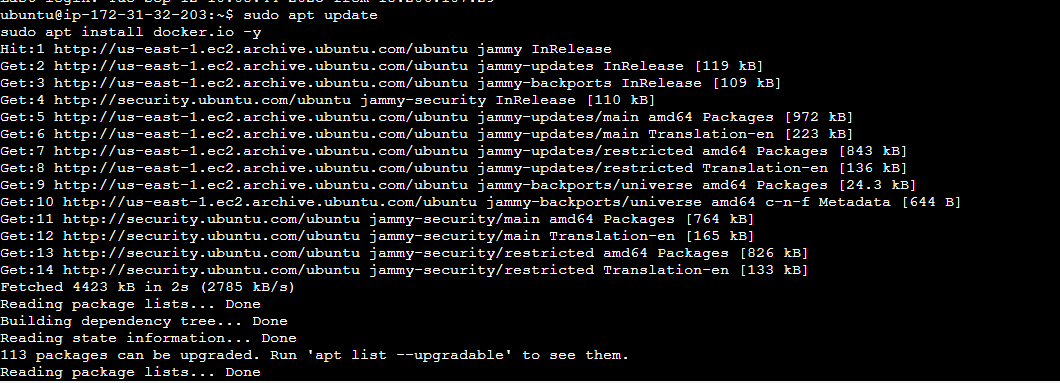
After installing Docker, start and enable the Docker service to ensure it starts automatically upon system boot.
 sudo systemctl start docker
 sudo systemctl enable docker
 docker --version
Install Jenkins:
Jenkins requires Java to be installed on your system. Make sure you have Java Development Kit (JDK) 17 or later installed. You can check if Java is already installed by running, If Java is not installed or the version is below 17, you can install it using your package manager. Here's how to install OpenJDK 17:
 java --version
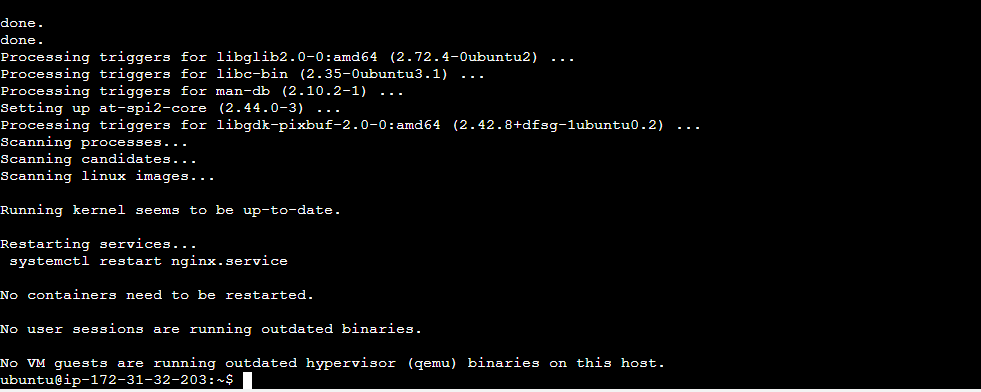
 sudo apt install -y openjdk-17-jdk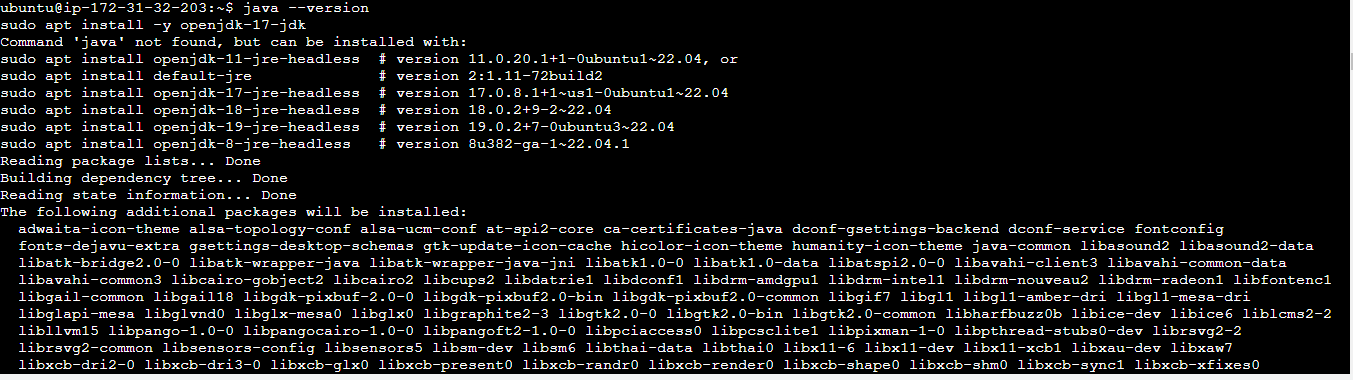
Jenkins is not typically available in the official package repositories, but it can be installed using package managers with the help of additional repositories or packages designed for Jenkins.
For Debian/Ubuntu-based distributions:
  curl -fsSL https://pkg.jenkins.io/debian/jenkins.io-2023.key | sudo tee \
   /usr/share/keyrings/jenkins-keyring.asc > /dev/null
 echo deb [signed-by=/usr/share/keyrings/jenkins-keyring.asc] \
   https://pkg.jenkins.io/debian binary/ | sudo tee \
   /etc/apt/sources.list.d/jenkins.list > /dev/null
 sudo apt-get update
 sudo apt-get install jenkins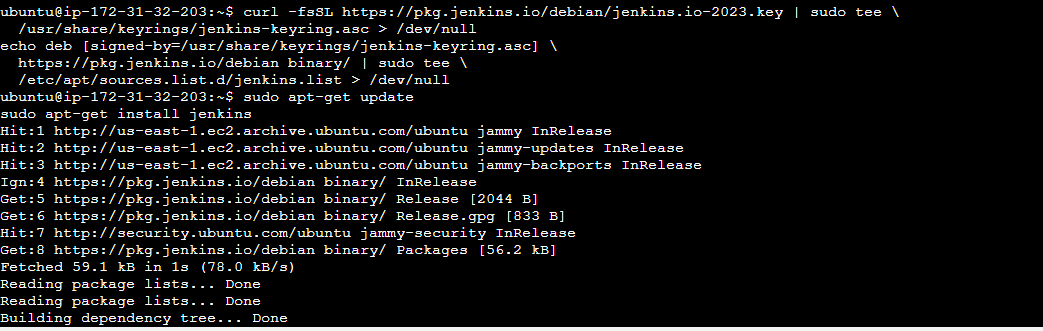
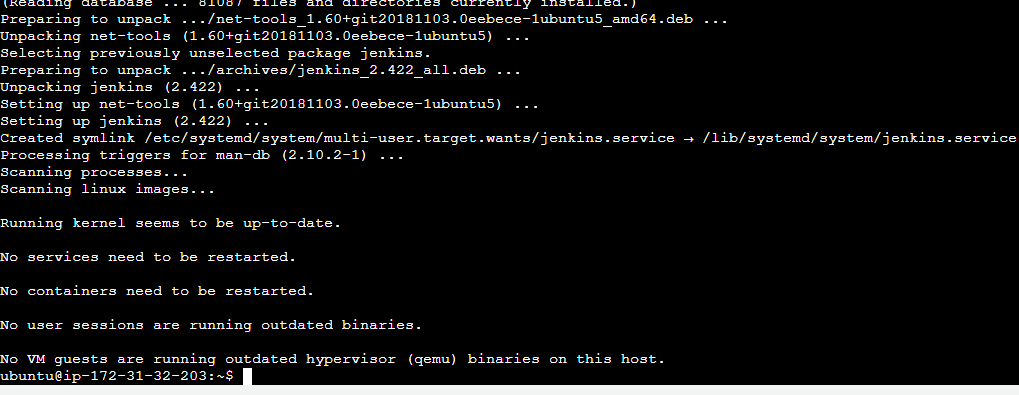
After the installation, start the Jenkins service and enable it to start on boot.
 sudo systemctl enable jenkins
 sudo systemctl start jenkins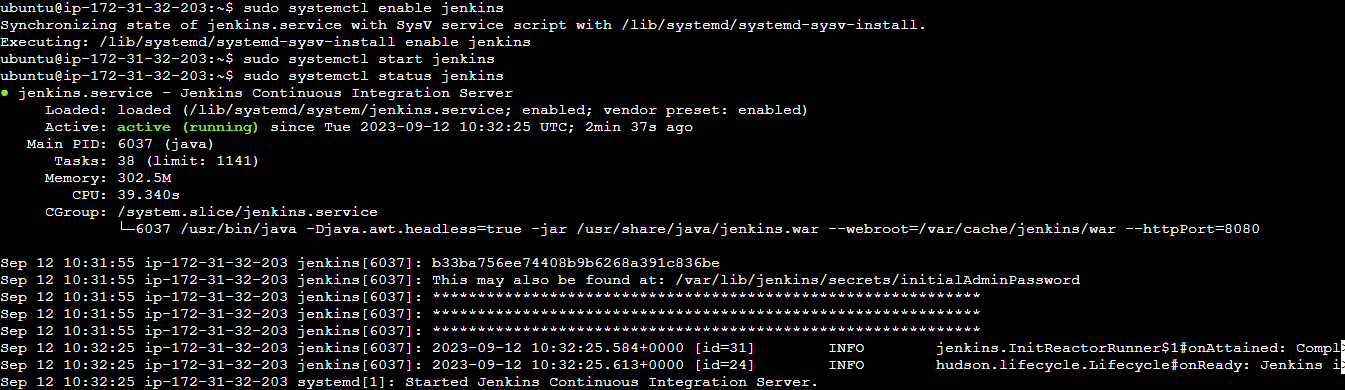

Jenkins will be available on port 8080 by default. we can access the Jenkins web interface by opening a web browser and navigating to
http://localhost:8080. Follow the on-screen instructions to complete the setup.During the setup, Jenkins will provide an initial admin password, which you can find on your system in the file. If you have a firewall installed, you must add Jenkins as an exception. we must change
YOURPORTthe script below to the port you want to use. Port8080is the most common. Go to the terminal and enter this code-YOURPORT=8080 PERM="--permanent" SERV="$PERM --service=jenkins" firewall-cmd $PERM --new-service=jenkins firewall-cmd $SERV --set-short="Jenkins ports" firewall-cmd $SERV --set-description="Jenkins port exceptions" firewall-cmd $SERV --add-port=$YOURPORT/tcp firewall-cmd $PERM --add-service=jenkins firewall-cmd --zone=public --add-service=http --permanent firewall-cmd --reloadthen enter this in the browser-:
http://localhost:8080To know the password enter this command in the terminal-:
sudo cat /var/lib/jenkins/secrets/initialAdminPasswordThen give a username, password, email id, and Full name in the Jenkins portal.
systemctl and systemd:
The systemctl command is a systemd utility used to manage services, get information about service unit files and service states. The systemctl command manages both system and service configurations, enabling administrators to manage the OS and control the status of services. It is useful for troubleshooting and basic performance tuning.
Why is it called systemd?
Because it's a system daemon, and under Unix/Linux those are in lower case, and get suffixed with a lower case d. since systemd manages the system, it's called systemd. It is a single daemon that performs complete process management, from startup to shutdown. It speeds up boot times by parallelizing service starts. It conserves system resources by starting services on demand, and puts them to sleep when there is no demand.
TASKS:
Check the status of docker service in your system
sudo systemctl status docker
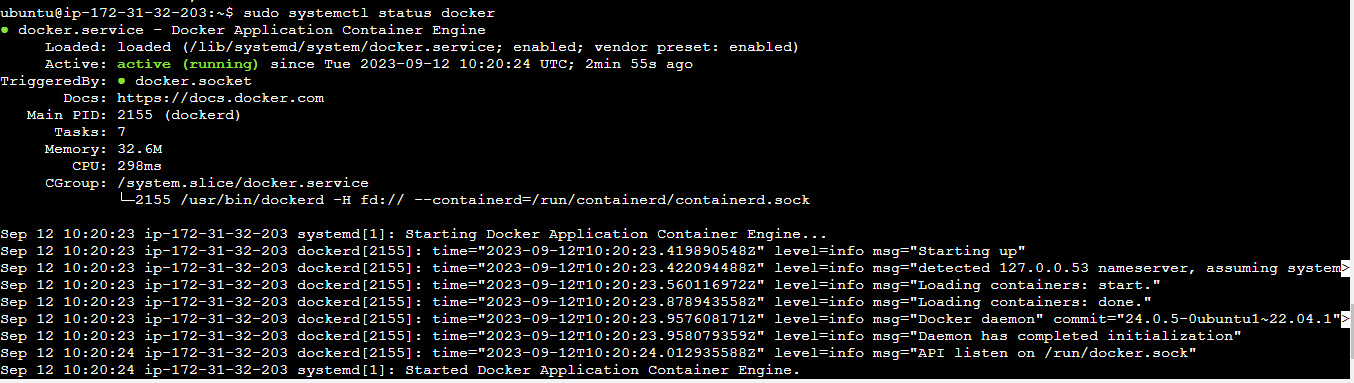
Stop the service jenkins and post before and after screenshots
sudo systemctl stop jenkins


